Data Loading
Continue a Run
Users have the ability to continue a previous routine, and load data from historical badger runs into a new routine by loading in the data from that run on the data tab.
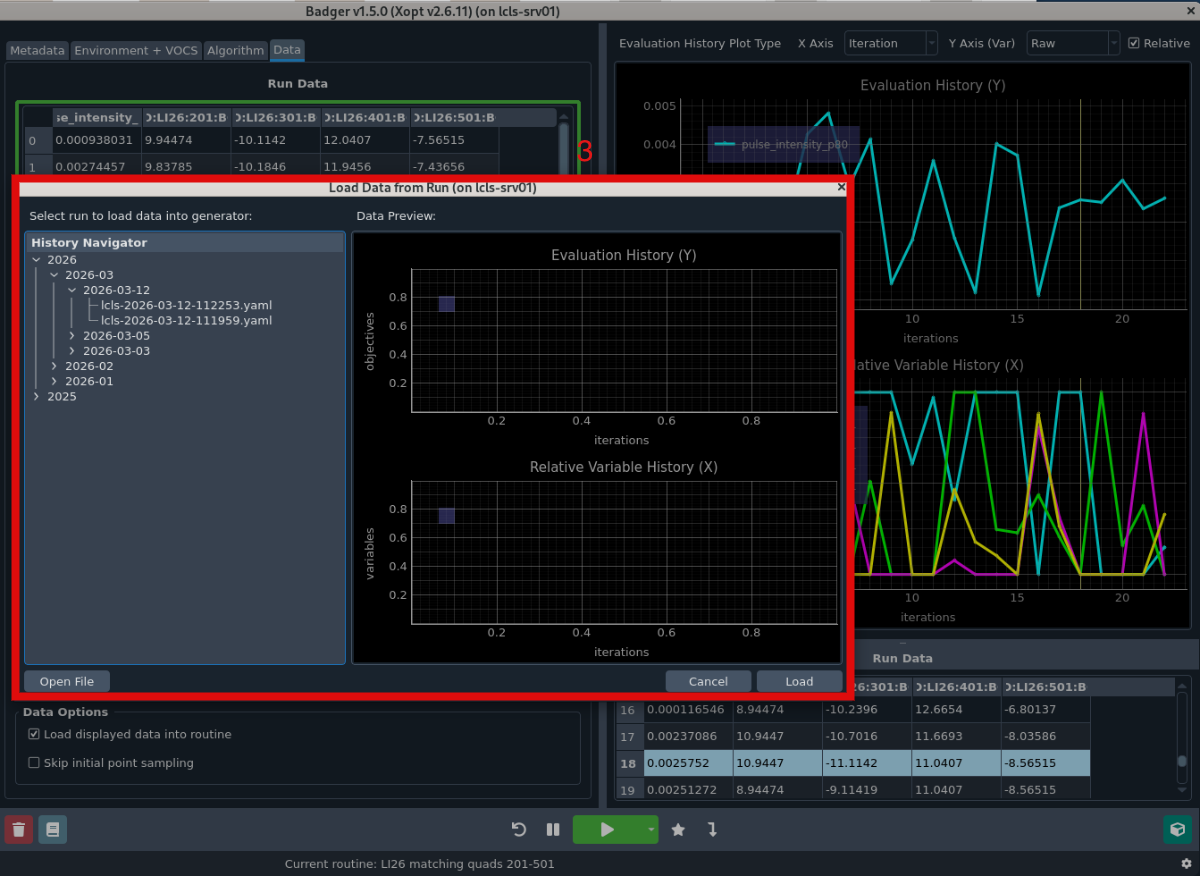
The Data tab includes a table showing data in the selected routine, which mirrors functionality of current run data table. Users can use "Add Data" button to add data from previous Badger runs. Selecting data to load is visually indicated with a green border. Users can also load data from a file and plot preview of selected run.
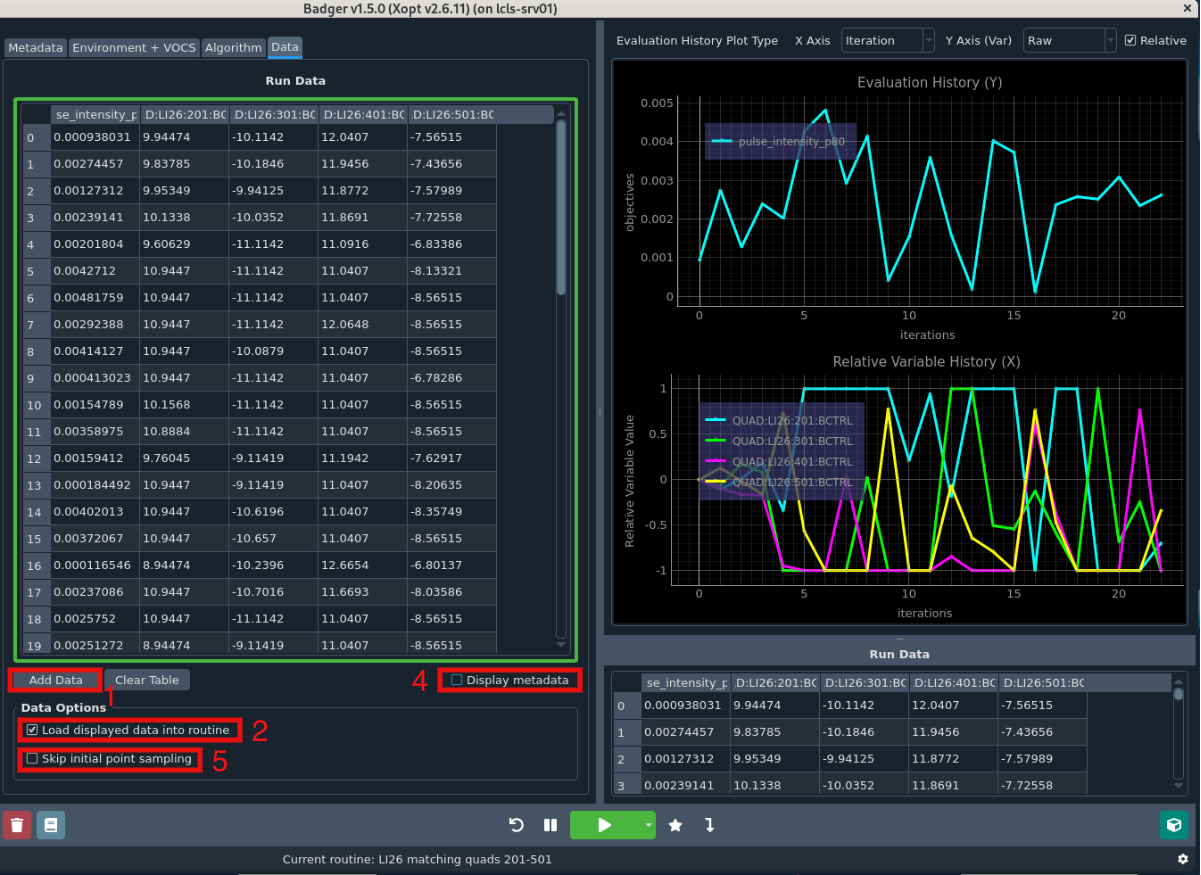
- The "Add Data" button opens a new window which lets users load data from other runs, with a preview of the data to be loaded.
- Selecting "Load displayed data into routine" will highlight the data table with a green border to indicate that it will be loaded
- There is also a popup asking to confirm after starting a new routine with loaded data.
On the main Badger plot, data which has been loaded from a previous run is indicated with a dashed line
- The "Display metadata" checkbox lets you see additional data fields like timestamp, error and runtime.
- If you wanted to continue a previous run without sampling new initial points, you can select "Skip initial point sampling" after choosing to load data.
Data Compatibility Requirements
Historical data can only be loaded if it matches the variables and objectives currently selected in your routine's VOCS tab. Observables and constraints can differ between the loaded data and current routine, but variables and objectives must be identical.
When adding data from multiple sources, all data in the table must share the same variables and objectives. If you modify your VOCS selection after loading data and "Load displayed data into routine" is checked, Badger will validate compatibility and display an error if there's a mismatch.