Mini Mode Tutorial
Make sure you have Badger installed and setup, and that you have gone through the main GUI tutorial at least once — this tutorial assumes you already understand what a routine, environment, and generator are.
Mini Mode is a streamlined launcher for running optimizations when you already know what you want to optimize. Unlike the full GUI, Mini Mode starts from a template — a saved snapshot of an environment, VOCS, generator, and variable ranges — rather than asking you to build the routine from scratch each time.
In this tutorial you will:
- Launch Mini Mode with a template.
- Run an optimization using one generator.
- Switch to a different generator mid-session and reuse the data from the first run.
Launch Mini Mode
Run from the terminal:
badger -mini
Mini Mode opens with the routine editor on the left and the live monitor on the right. The template dropdown sits at the top of the Environment + VOCS tab.
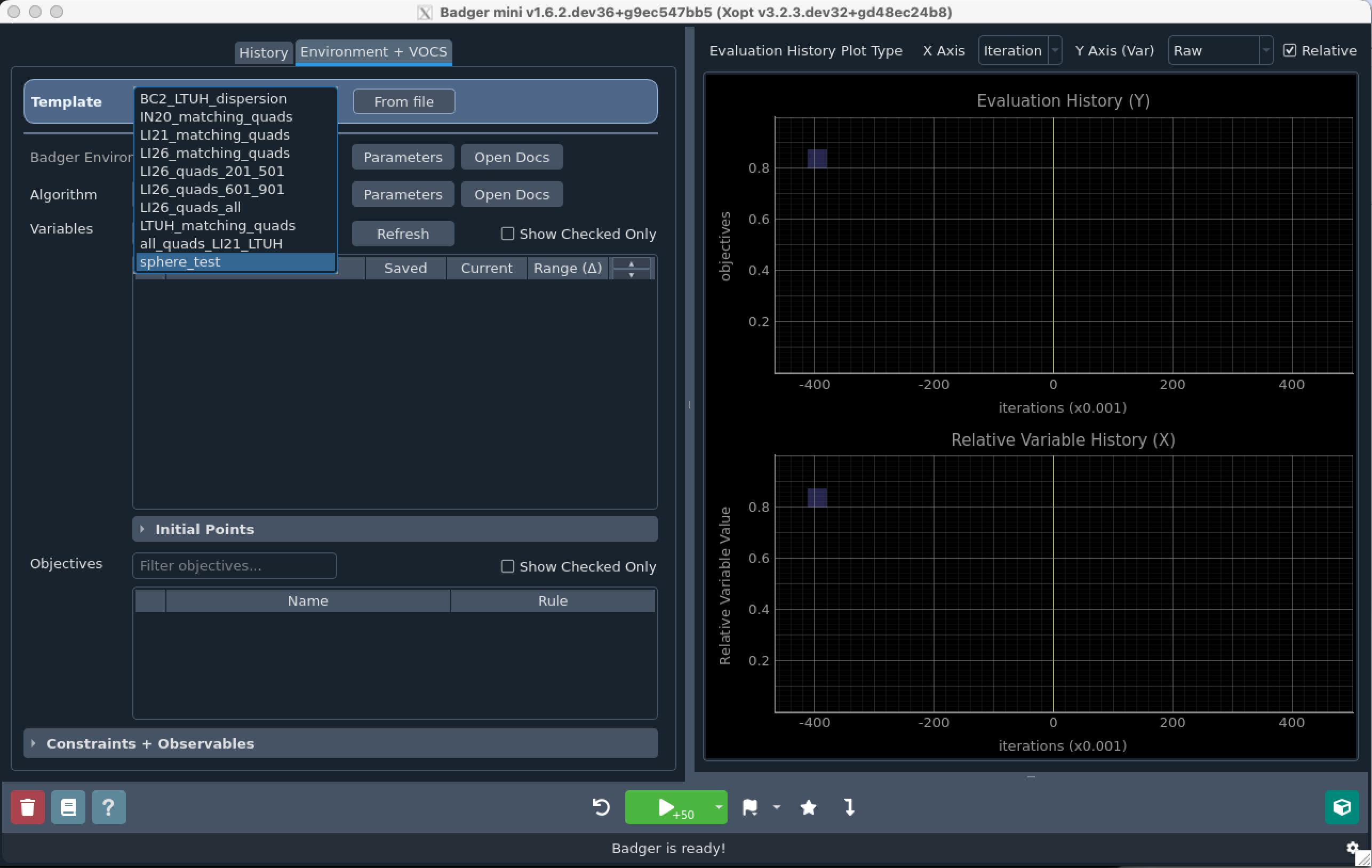
You can preload a template directly from the command line:
badger -mini -t sphere_test.yaml
Badger looks for the file in BADGER_TEMPLATE_ROOT (see
Templates for how to configure this).
Load a template
Pick a template from the dropdown. Loading a template populates:
- The environment and its parameters
- The variable list, with ranges set relative to each variable's current
value (per the template's
vrange_limit_options) - The generator and its parameters
- Objectives, constraints, and observables
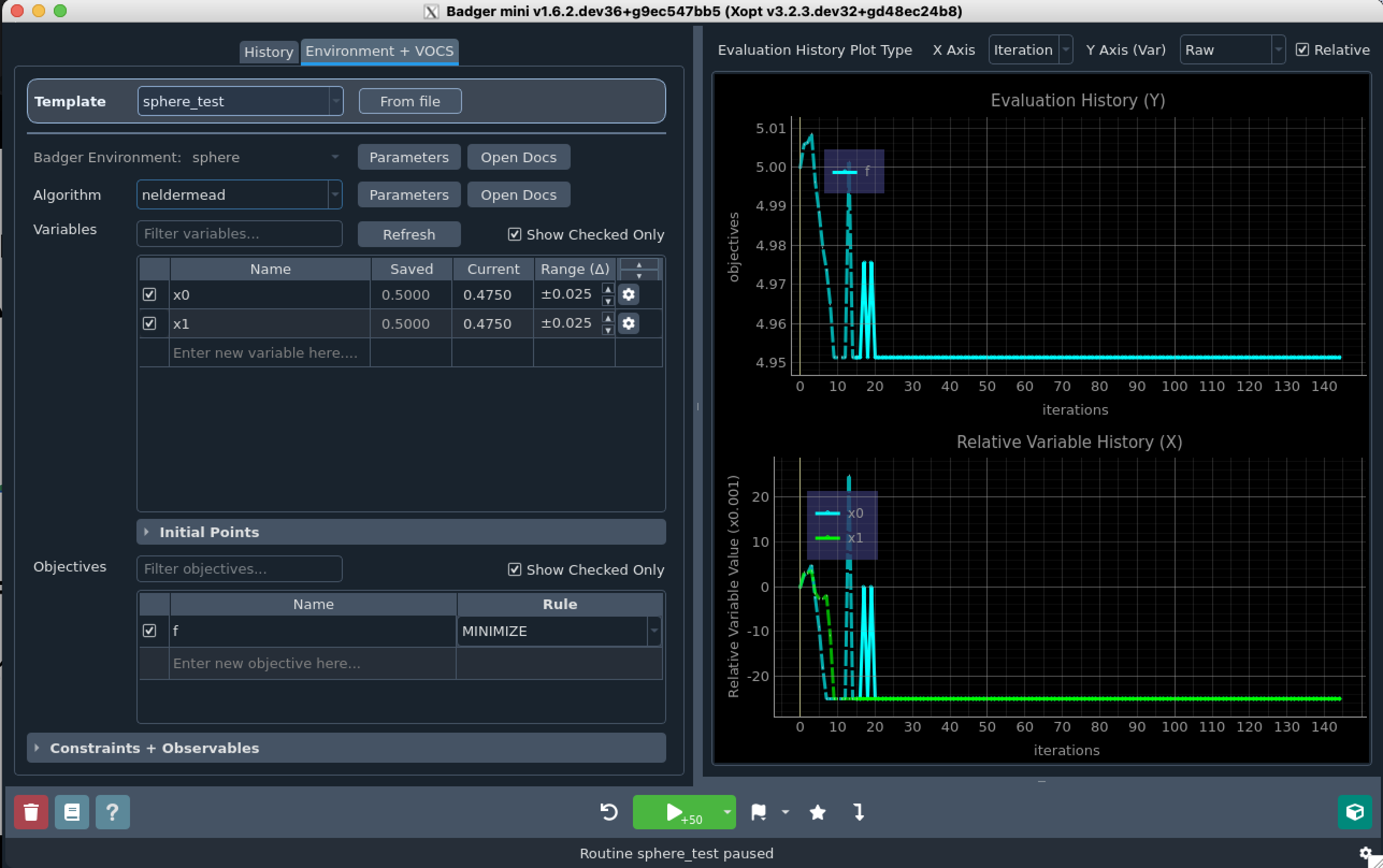
Verify the loaded settings before running — the current and saved values show in the variable table, and the range column shows the delta that will be applied around each current value. Use the gear icon on any row to inspect or override a single variable's bounds.
Run the first optimization
Press the play button in the action bar to start the run. The termination condition on the button controls how many iterations run before the loop pauses (50 iterations by default). You can:
- Press play again while running to pause.
- Open the dropdown next to play and select Edit Condition to change the iteration count or switch to a time- or tolerance-based condition.
- Press play while paused to resume — the run continues for another full termination condition's worth of iterations.
See Mini Mode for the full play/pause reference.
Continue a run with new settings
A key advantage of Mini Mode is that you can adjust the routine without leaving the session. You might pause to widen a variable range, tighten a bound, or switch generators — for example, starting with Nelder–Mead to quickly find a good region, then switching to Expected Improvement to refine around the best point so far — and continue from the data you have already collected.
- Pause the current run.
- Make your changes: adjust ranges, pick a different generator, or edit algorithm parameters.
- Press play. The smart run controller decides whether to resume in place, reload the current data and restart with the new settings, or fully restart the routine, depending on what changed.
On the plots, data which has been loaded from a previous run — reflecting potentially different optimization parameters or external machine state — is displayed with a dotted line, while points sampled under the current settings continue as a solid line. This applies whenever data is carried forward: after a generator change, after a range adjustment, or when you load a historical run from the History tab.
Where to go next
- Mini Mode reference — full breakdown of the UI, variable table, and run controls.
- Templates — how to author and save your own templates.
- History tab — browsing and loading past runs.